Jun 08

Last Tuesday I attended the teacher’s centre in Bromley to deliver a presentation for a group of staff from different schools who are going to be taking part in this year’s ‘Summer School’ event.

For a lot of the time I went over the last five years worth of work, which was absolutely compelling to do - I can’t say how much of an impact this stuff has - it is really leading the way in the digital creativity stakes! The staff were attentive, asked questions and ultimately just *had* to participate!

When I get round to demonstrating clay animation it is really captivating - not because of me, but because of the subject and the materials you get to use. On this occasion I animated a mobile phone and a ball of plasticine, making a six second film called ‘disappear’. Then it was the turn of the teachers and boy oh boy you should have seen the way they got into making those plasticine models! It really is a refreshing thing to do and to see…

The actual training day for the children is next week, and I am sure we will have every bit as good a result as in previous years. We ought to make a few DVDs of this work… :-)

May 29

It’s official… Ultralab are going to be providing staffing for the forthcoming BBC Blast tour of the UK!

BBC Blast have commissioned a truck to be built which converts to a studio and workshop area. This is quite amazing on its own, but add to that twelve PC laptops, three MacBook Pro laptops, High Definition DV cameras, networking, A3 colour printing and scanning, a sound studio, video editing capabilities and all manner of digital creativity tools, and you have some idea of what can happen inside the vehicle.

And that’s not to mention what goes on outside! The outer area is going to form a workshop space with a stage for performances, too. Covered by a large awning, the space has room for about 100 people when showcasing work, which is quite a number.

So what is Ultralab’s role?

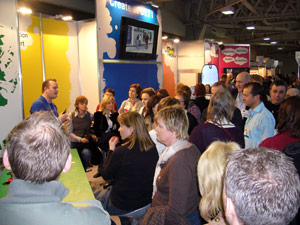
We have been working with the Blast team for a while in different capacities. At the BETT show last January we were part of the collaborative venture between BBC Blast and Apple computers that became the ‘Create at BETT’ stand. Since then, we have been talking about how to take the ideas ‘on the road’ and the BBC wanted to run a creativity roadshow… seems like the two were destined to meet!

Ultralab staff will form the lead facilitation team on the tour, with one person at every location acting as the head of a small team of local freelancers brought on to run the workshops. This will then provide for a good deal of continuity between cities as the tour takes place, ensuring someone with a clear understanding and years of experience of the creative opportunities is at every venue.

I am delighted to be a part of all that, along with colleagues Matt Eaves and Hamish Scott-Brown. Between June and September the three of us will be on the tour taking on the lead role between us. Starting in Liverpool with Matt, then going over to Northern Ireland with Hamish, the tour then moves into Scotland and works its way south through Sheffield, Norwich, London, Reading and many other places along the way. The North East is hosting the truck as well, with Hull and Newcastle carrying the responsibility.

Each location will have a mix of dance, video, audio and graphic creative activities, running over a number of days and culminating in a showcase day. This is going to be a 15 week tour, and if all goes well then next year becomes a 30 week tour!

Amazing to be part of something so exciting, and I am thrilled to be working with such a forward thinking team at the BBC.

More news as the tour progresses!

Aug 08

Oh yes - he does exist in Final Cut Pro 4 and 5! If you have no idea what I am going on about here, run a few intenet searches for ‘Bruce the Yak’ or ‘Easter Egg in Final Cut Pro’. The guy’s a legend!

I am not going to tell you how to get him in v4 or 5. In an earlier version you have to invoke the tools window and click find a certain spot to control+click in, and ‘Call the Yak’ would appear as an option. Nowadays it’s a tad harder, but suffice to say it isn’t in the tools window - and it isn’t about control+clicking anything.

There could be a custom button for it, though… ;-)

(Many, many thanks to Michael Conniff for pointing the way here.)

Oct 03

OK - not a real discovery as such - probably well documented elsewhere, but we were chuffed to have found it!

The problem was two-fold. First, capturing footage from a camera needed a pre-set to match the camera. More often than not the sound would be out of sync by the time we got it onto the timeline. Secondly, putting the footage onto the timeline often meant we had to render it before we could edit it. Sigh.

First one was easy-ish. We simply had to understand that the camera was set to capture sound at 32Khz instead of the expected 48Khz. Making a capture preset based on 32Khz sound cured that one (of course, the camera is capable of 48Khz sound, and that will be the first thing I look into on Monday).

The second was a little more tricky. Looking at the footage, some of it went onto the timeline without the need to render, and some didn’t. There was obviously something different between the formats - and yet they all came from DV cams.

Looking more closely, we found that some of the footage was in DV PAL format, and some in DVCPRO PAL format. What on earth is the difference? Doing a little digging around (isn’t the Internet a brilliant thing?) I found this table to explain it. So how did we solve it…?

In the end it was simple - we figured out that the timeline really showed a graphical view of the sequence that we created… so we had to check the sequence pre-sets. What we found was that FCP creates sequences with different formats of DV, and where we imported footage that needed rendering, the sequence we put it into was a different format to the captured file. Easy, innit?

We just changed the sequence to match the file, lo and behold, the red render bars disappeared and off we went!

In fact we could save ourselves a lot of trouble by looking in the asset bin - the formats of the clips are all listed! We should have read the manual, shouldn’t we?

Anyway, Matt has been doing the editing, I’ve been concentrating on the encoding - we are both learning and that’s no bad thing!

Oct 03

Well… here we are at the beginning of a new DVD for Ultralab and Matt and I were trying to find a way to present the footage from all of the summer schools. What we found was that there was a lot of interlacing showing on the films when viewed on a computer.

What the heck is interlacing? It is a good question - and I don’t have a good answer except to say that TV pictures are made up of two ‘fields’ which appear on alternate lines. The TV set shows the first field and then the second, fast enough so that our eyes can’t see the change (although on some older TVs the change is noticeable as a ‘flicker’). On a computer screen, there is no such thing - it shows you the complete picture, but what happens when you show interlaced footage from a camera onto a computer? For the most part it looks OK, but where there is sudden movement the computer shows the first field and then the second field out of sync. Typically this looks like there is a row of ‘mouse teeth’ along the edges of the image and in really bad cases (such as in fast motion) the computer can display a striped ‘ghost’ of a person or object in two places at once. On a TV those ghosts simply look like subtle blurs and the interlacing never shows up.

So how do we deal with this - the DVD will be projected from a computer at the main ‘launch party’ in December, and it is quite likely that it will be viewed more on a computer than a TV, but of course not exclusively. We therefore had to find a way to get the best out of both situations.

We decided that one way around it was to de-interlace the footage. This is risky in some ways, depending on how it is done. If you remove a field, then a TV loses a massive amount of the picture resolution, which is no good. If you remove a field and then duplicate the other, overlaying it on top of the first then it is slightly better, but the very best way would be to use an adaptive de-interlacing method which keeps the vertical resolution by subtly blurring the two fields and joining them to be a single picture… this is similar to the way I understand progressive scan pictures are made (but then, what do I know…?)

So we tried it, and it looked pretty good on the computer screens - razor sharp, in fact, rather than with loads of mouse teeth. So we then built a test DVD and tried it on a range of TVs. In all cases the footage was pin sharp and it looked as if we had cracked it.

But this wasn’t the end - being a total perfectionist I needed to understand the interlacing issue even better, and looked to the Los Angeles Final Cut Pro User Group forum, where I asked the question - how does deinterlaced footage look when shown on a TV. The answer I needed came from a very respected Graeme Nattress (Many thanks Graeme).

Graeme explained to me the processes of deinterlacing, the tools available to do it and what to expect - it is akin to going somewhere towards re-creating a film look on video (which in my mind is no bad thing). I promptly went to nattress.com and bought the film look filter set that Graeme has developed and will now be using that with all of the Summer School clips.

The major down side of all this comes when we go to encode the footage to MPEG2. We are fortunate to have a decent enough hardware encoder (Mediapress Pro from Wired Inc) which works in real time from an output on the camera. However, deinterlacing the footage in Final Cut and then printing it back to a tape on a DV camera re-interlaces it.. D’oh! We can’t then use real time hardware encoding unless I can find a way to go to a camera or deck without the interlace. Instead, we have to go for a QuickTime transcode from DV to MPEG2 - the quality is outstanding, but the time… about 5:1 (which is better than the approximate 10:1 we would get through software alone).

More news about encoding as it arrives…